DriveWorks implementation enables manufacturers to automate product configurations within SolidWorks, transitioning from manual to rule based design processes. Properly integrating systems, having an established set of CAD templates, proper logic and planning for the future enables companies to successfully implement configure to order manufacturing solutions.

Leading CAD Outsourcing Company offers solutions of Engineering CAD Services, Design Drafting & 3D Modeling
Email us:
info@truecadd.com
info@truecadd.com
Leading CAD Outsourcing Company offers solutions of Engineering CAD Services, Design Drafting & 3D Modeling
DriveWorks Implementation Tips for Smarter Product Configuration
Updated on July 22nd, 2026
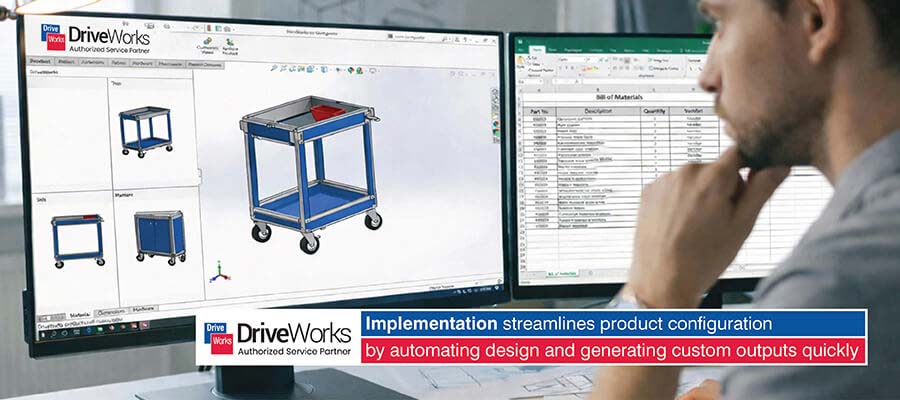
Table of Contents
- Establishing a strong DriveWorks implementation foundation in SolidWorks
- Preparing automation ready SolidWorks CAD models for DriveWorks
- Capturing engineering logic for implementing DriveWorks rules
- How to build a high performance DriveWorks product configurator
- Implementing CAD automation with DriveWorks in SolidWorks
- Integrating DriveWorks with CAD, ERP and CRM systems
- Best ways to address DriveWorks implementation challenges
- Conclusion
The process of manually configuring products has been one of the biggest challenges in manufacturing. It is common to see sales teams waiting for days or even weeks to receive quotes from engineering teams. Engineers, at the same time, keep redesigning the same thing over and over until viability and feasibility both can be reached.
While sales teams fret as they see opportunities slip away. In this situation, the lack of structured CAD models and rules thrice compounds issues and trying to rush leads more often to errors and waste of resources, negating any time savings.
DriveWorks implementation resolves some of these challenges by automating the rule-based configuration of products in SolidWorks. The system will automatically generate correct designs, drawings and documentation so that you no longer need to worry about the delays and errors associated with manual processes.
By implementing DriveWorks for the automation of your CAD, you will enable your sales team to quickly configure products. Your engineers will focus on developing innovative new products instead of tweaking existing ones. This is how CAD automation with DriveWorks can provide the foundation for your company’s operational growth.
Establishing a strong DriveWorks implementation foundation in SolidWorks
As an automation tool working within SolidWorks, DriveWorks needs a strategy to link it to your company’s business objectives. To lay the groundwork for this strategy, first consider the products you wish to automate and then map your current workflow processes.
Evaluating product suitability for configuration
Focus your DriveWorks implementation on product families that have a high number of variants and those with well-defined rules that the engineers must follow. Identify the challenges that the engineers face.
Defining scope and aligning stakeholders
Before you begin building, define measurable key performance indicators (KPIs) for successful measurement. Clearly define what you expect from DriveWorks. That includes CAD files, drawings with dimensions that are automatically populated, Bills of Materials, manufacturing plans, and even quotations to customers.
Mapping workflows for effective implementation
Document your current design and quoting process step by step beginning at the point that the customer first makes contact with your company through to handing off all the work to manufacturing. Identify where the bottlenecks occur and where there are redundant tasks occurring between departments. These are the areas where engineering automation will provide the most benefit.
Once you have documented your workflows, then you create a plan for the product configurator. You need to map out how you wish to receive requirements from the customer, apply engineering rules, generate outputs you require and connect them to downstream systems.
Preparing automation ready SolidWorks CAD models for DriveWorks
How good your CAD templates are will have an influence on how reliable your configurator will be. Therefore, it is critical to methodically identify and remove the build errors from your master templates.
The following are the essential steps to get your CAD templates in order:
- Standard naming conventions: Ensure your dimension, sketch and feature names clearly describe the items they relate to. This will assist in creating clearer rules for them.
- Test for stability: Rebuild each template several times using differing parameter values. Any features that do not function properly or create inconsistent results, must be identified and resolved prior to moving forward.
- Set up reference hierarchy: In your features use fixed references instead of dependent references. This will greatly improve the ability to understand what is happening once your configurator begins to automate tasks.
Establish central governance standards for your CAD work which outline the accepted methods including the CAD modeling best practices, acceptable metadata fields and file management procedures for product design automation.
Capturing engineering logic for implementing DriveWorks rules
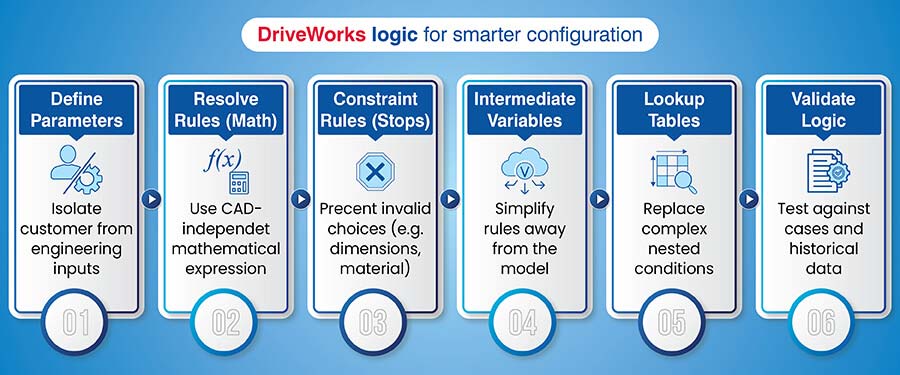
Getting engineering expertise into actual rules is what makes a configurator intelligent and reliable but that does not necessarily mean automating every individual model feature. Here is how engineering logic is captured systematically and in a structured process:
- Define your parameters and input types: Determine the parameters and input types you are receiving from your customers. Isolate the engineering parameters from the customer input parameters.
- Document resolve rules for calculations: The documented calculation rules should be written as a series of mathematical expressions that are independent of CAD software being used.
- Set up constraint rules as hard stop limits: Prevent the users from creating invalid choices. Review the constraint rules to ensure they cover all of the dimensional limits, material incompatibility issues and manufacturing issues that may arise.
- Implement intermediate variable strategy: Place all of the complex rules away from the model itself. Instead use named variables and refer to them in the outputs. This approach allows for debugging without regenerating the entire model and also allows the same rules to be reused in quotes, Bills of Material and drawings.
- Replace nested conditions with lookup tables: Convert nested conditional statements into a lookup table when the complexity becomes too much to handle. Lookup tables should be 2 dimensional matrices that determine output values by referencing multiple input criteria.
- Validate logic against test cases: Run validation tests on the logic against pre determined test cases with known input and expected outputs prior to deploying the logic. Once the test cases have been run use historical configuration data to validate that the deployed rules are producing the correct results.
Once the rules have been grouped together based upon what each group does, it is easy to test them individually and then reuse them across other custom product configuration projects where similar rules exist.
How to build a high performance DriveWorks product configurator
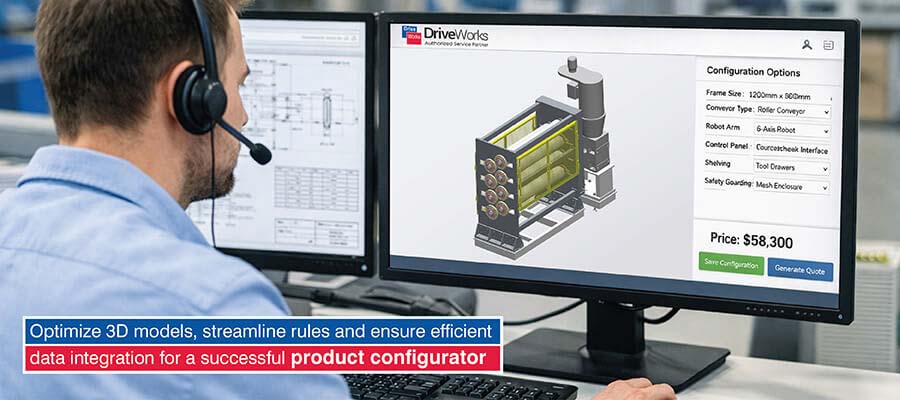
Getting the most out of your configurator requires a solid foundation in user interface design, a logic architecture that scales with ease, careful validation techniques and optimizing performance.
Designing guided and intuitive input forms
You want to build a path for users to follow through your configurator, guiding them through the key decisions that matter. Related options go together so group them up accordingly. For discrete choices dropdown menu is going to be the best choice. Also make sure you’re only showing users what’s relevant to them at any given time.
If you’re using technical terms, keep guidance tooltips to help out your sales team. Make sure your language is consistent across the whole thing so that your sales team and engineers are on the same page even if it’s a sales configurator interface.
Example: Let’s say you’re building a cabinet configurator. Start with a simple question “What type of cabinet do you want?” (Base, wall, tall). Then use that answer to decide what other options to show them next. So if they pick a base cabinet, show the “drawer configuration” options. If they go for a wall cabinet, show the “door style” and hide all the drawer related info.
Structuring configurator logic for scalability
Implement an architecture that lets you easily build and reuse components in a modular way keeping those parts that can be used in lots of different places separate from the parts that are specific to a particular product.
You need to centralize the logic that applies to different products like pricing calculations and material lookups that always work the same way. This makes updating a whole lot easier. Make sure you set up the DriveWorks product configurator architecture to handle multi product expansion from day one, so you can easily add new products later, with flexible database schemas and rule structures to guide you.
Example: Create a central “HardwareLogic” module that calculates hinge quantities and placement for all cabinet doors. Then, when you add a bathroom vanity configurator to the mix, it can just reference the same hinge logic. You don’t have to duplicate rules and go through the hassle of getting it all set up again.
Enforcing accuracy with rule based validation
Implement dimensional checks that make sure the dimensions customers are configuring are within what you can actually make. Validate that any customer specified sizes are going to work with the material you have available and meet the structural requirements.
Prevent users from selecting materials that we know won’t work by enforcing engineering constraints. If a user tries to select conflicting options, the system should stop them from doing so or automatically adjust the dependent options so they won’t get stuck with an unworkable configuration.
You also want to make sure your engineering outcomes are compliant with the standards by embedding design standards directly into engineering automation logic.
Example: For a window configurator, if a user tries to set the width above 72 inches but only goes with single pane glass, trigger a validation message: “Windows over 72 inches need dual pane or tempered glass for structural integrity.” Block the configuration or automatically sort out the glass specification.
Enhancing configurator performance and responsiveness
The first thing you do is clearly distinguish between inputs that affect the actual design and those that just tweak metadata. Delay the full rebuild until you’re finished making changes, rather than redoing it after every little tweak. This will help reduce needless CAD rebuilds.
This smart updating is what keeps complex configurators running smoothly. You can pop up preview images or simplified graphics to give users a sneak peek without slowing things down. Hold off on the full CAD generation until you’re ready to create the final output.
Example: In a door configurator, when you change the finish color it just updates the metadata and no CAD rebuild is necessary. But if you change the door thickness, that’s a geometry recalculation. Use some pre rendered images to show off the finish options while you’re selecting and only generate full CAD when the user clicks “Finalize Design”.
DriveWorks Customization for Metal Doors & Frames
A US based manufacturer of hollow metal doors and frames were struggling with design data transfer, ad hoc custom order processes and way too much tedious drafting. This was causing delays and errors and they needed a streamlined engineering workflow that would let them deliver faster and do better quality work.
TrueCADD built a DriveWorks based door configurator within SolidWorks that generated 3D CAD models and manufacturing drawings from user input parameters. This let them create fast, consistent production docs for custom designs.
The end result was:
- A 70% reduction in design cycle time
- More designs got right first time
- Over 70,000 custom doors and frames designed and documented
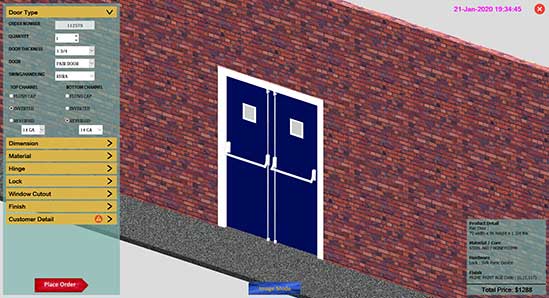 Online Configurator for Metal Door
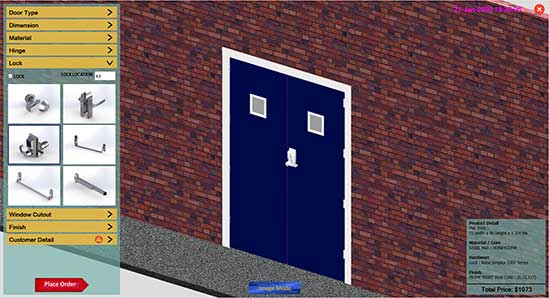 3D Door Components Customization
Implementing CAD automation with DriveWorks in SolidWorks
To get real CAD automation with DriveWorks working in SolidWorks, you need to make sure you’re using rules in a way that makes sense to drive the model behavior and then figure out how to manage the output in a way that works for the next step in the process.
Driving CAD behavior through rules
You can link your configuration rules right into the model dimensions, features and materials. When the user inputs information map that to specific CAD parameters. That way, the configurations can automatically generate the right geometry.
By automating feature suppression and patterns based on your configuration logic, you can control how many pattern instances get created and how many repetitive features get added in. This lets you adapt the quantities of components to whatever the user needs.
The following table shows what can happen when configuration inputs get translated into specific CAD behaviors through rule driven automation:
| Configuration requirement | Rule logic | CAD behavior result |
|---|---|---|
| Cabinet width varies 12″-48″ | dwVar_Width = UserInput_Width | Updates “Width@Base” dimension; adjusts door panel sizing automatically |
| Adjustable shelf quantity 0-5 | dwVar_ShelfCount = UserInput_Shelves | Controls linear pattern instances; suppresses shelf pin holes when count = 0 |
| Door style: Solid or Glass | IF DoorStyle = “Glass” THEN “Glass Panel” ELSE “Solid Panel” | Suppresses glass insert feature for solid doors; activates glass material assignment for glass doors |
| Hardware finish selection | dwVar_Finish = LookupTable(Hardware, FinishType) | Applies correct material appearance to hinges, handles and drawer pulls |
| Custom vs. standard sizing | IF Width > 36 THEN “Custom” ELSE “Standard” | Triggers different file naming: “CAB-CUSTOM-” vs “CAB-STD-“; routes to appropriate manufacturing folder |
Automating outputs for engineering and manufacturing
Automatically generate complete drawing sets with all the right details like views, annotations, tables. The CAD automation with DriveWorks system produces drawings that you can export as PDFs for customers to review or DXFs straight to the manufacturing equipment.
Apply a standard set of templates and tolerances across all automated outputs to ensure it all looks consistent. Then use those to generate bills of materials with all the right part numbers, quantities & custom properties.
DriveWorks Design Automation for a Metal & Wood Furniture Manufacturer
A US based metal and wood furniture manufacturer was facing difficulties with slow engineering lead times, repetitive design tasks and delays when responding to custom requests from architects and retailers. They needed to speed up custom design delivery while also getting their output more consistent and accurate.
TrueCADD built a DriveWorks based CAD configurator integrated with SolidWorks and automated 3D model creation, manufacturing drawings and documentation from 2D inputs. The sales team could now enter requirements and get rapid, accurate generation of production ready designs and quotes.
The end result was:
- Lead times in engineering cut from 4-5 days down to 1
- Design cycles sped up by 70 times
- Quality and consistency in custom output went up
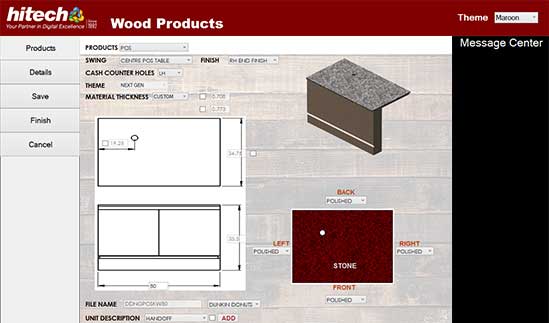 DriveWorks Configurator for wood furniture products
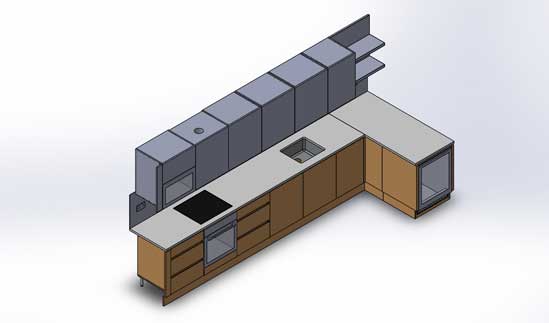 CAD Customization for metal and wood kitchen furniture
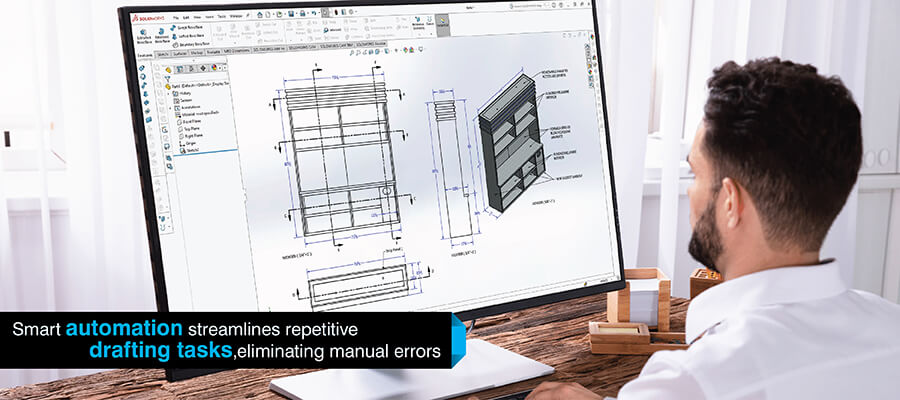
Eliminate manual drafting with DriveWorks drawing automation.
Automate drafting »Integrating DriveWorks with CAD, ERP and CRM systems
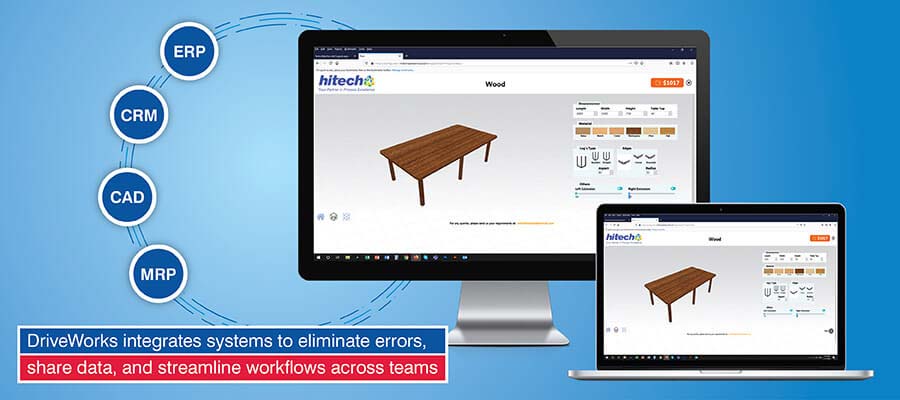
If you link DriveWorks to other software such as CAD, ERP and CRM systems, you reduce the amount of data that is stored in individual silos and enable all relevant information to flow from the original design to manufacture and finally to customer management.
Synchronizing DriveWorks with CAD and PDM systems
DriveWorks can be used to automate the revision control process by linking it to your PDM (Product Data Management) system. Every time the config tool produces new CAD files, it gets the PDM system to check them in and update the version number. DriveWorks also ensures that everything remains in sync by maintaining the metadata consistent with the config inputs.
Connecting DriveWorks to ERP and CRM platforms
You can connect your sales configurator to your ERP and CRM systems using SQL, ODBC interface or web API’s. Therefore, every time someone configures something, all relevant information will be sent directly to the ERP system in the background without the need for manual BOM entry etc., removing the associated transcriptions errors.
Creating a unified configure price quote pipeline
Prices are calculated in real time as soon as selections are made based on material costs, estimated labor costs and desired profit margins. As soon as a selection is made in the product configurator tool, it will generate an accurate price immediately. On completion, it will produce a quote document containing all required detail.
Best ways to address DriveWorks implementation challenges
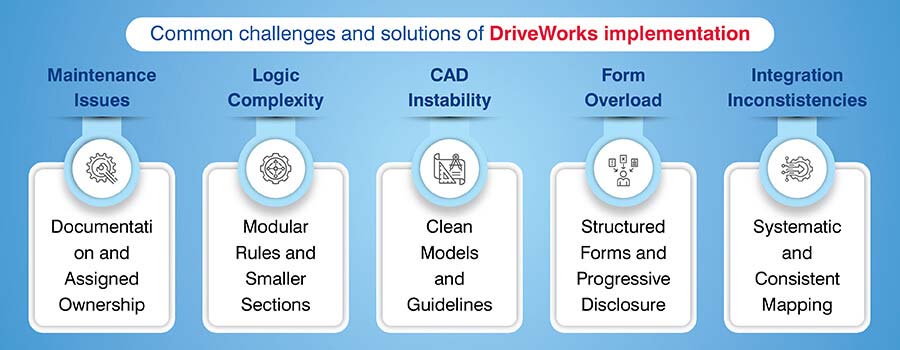
To help you to successfully implement DriveWorks, there are some common obstacles and methods to avoid or mitigate each one:
- Logic complexity: Make it simple and break it into smaller, manageable section. Use modular rule structures, which will make it easier to test and understand.
- CAD instability: Start with clean, well made master models and define strict guidelines as to how CAD work will be carried out.
- Form overload: Forms work best when they’re structured. Use techniques such as progressive disclosure, conditional visibility and grouping to limit the number of fields on a form.
- Integration inconsistencies: Be systematic when integrating each system and ensure consistency throughout the integration process using standard naming conventions and maintaining consistent metadata mappings.
- Maintenance issues: Ensure you document your DriveWorks solution so well that it’s easy to maintain. Assign ownership of the maintenance of the rules.
Conclusion
The aim DriveWorks implementation is to automate the parts of product configuration which are time consuming or prone to errors. Once the base has been established, the CAD model has been configured to enable automation and a user friendly configurator has been developed, there is the potential for real efficiency benefits to be gained.
In using the DriveWorks product configurator, businesses will gain in being able to reduce their quote delivery times, release their designers to focus on other tasks and establish systems which are scalable to their growing needs.
Product design automation is rapidly developing with new features and deeper integration. Businesses who invest in custom product configuration automation today will have a better opportunity to leverage future product design automation innovations and benefit from them.
Build interactive DriveWorks configurators for custom products.
Contact us now»









Harika Singh
Harika Singh is a published author with over 20 years of experience working with leading organizations in India and the United States. She develops authoritative content on BIM, CAD, VDC, digital engineering, and construction technology. Her expertise lies in translating complex technical concepts into actionable insights that help AEC professionals improve collaboration, efficiency, and project outcomes.
Related Posts

Need help on an ongoing basis?
We establish long term business relationships with clients and are committed to total customer satisfaction.
Home |
Sitemap |
Privacy Policy | Data Security & Confidentiality |
Contact us |